Showing posts with label Linux. Show all posts

Wednesday, July 8, 2015

Join RHEL/CentOS to Active Directory Domain 2012 R2

Joining a Linux Server to a windows domain is one of the more advanced tasks in Linux administration, however can be accomplished with the help of a few simple tools.

Login as root

Install the per-requisites using following command,

yum -y install nscd.x86_64 pam_krb5.x86_64 samba-winbind.x86_64


Once installed, open authconfig-tui util


Configure exactly as shown on the screen


Now part 2 (customize for your domain)


Make sure it’s not set to /sbin/nologin otherwise domain users will not have shell access

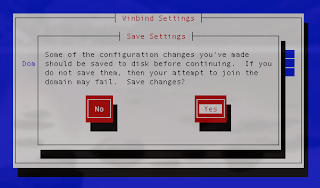
Save the config


Now enter your windows domain administrator password (only works with administrator)


Joined the domain successfully

Now from here reboot

you should notice a object in Active Directory Users & Computers

to login as a domain user use the following DOMAIN/username

Thursday, January 5, 2012

SSH login without password

Your aim

You want to use Linux and OpenSSH to automize your tasks. Therefore you need an automatic login from host A / user a to Host B / user b. You don't want to enter any passwords, because you want to call ssh from a within a shell script.

How to do it

First log in on A as user a and generate a pair of authentication keys. Do not enter a passphrase:

a@A:~> ssh-keygen -t rsa 
Generating public/private rsa key pair. 
Enter file in which to save the key (/home/a/.ssh/id_rsa): 
Created directory '/home/a/.ssh'. 
Enter passphrase (empty for no passphrase): 
Enter same passphrase again: 
Your identification has been saved in /home/a/.ssh/id_rsa. 
Your public key has been saved in /home/a/.ssh/id_rsa.pub.
The key fingerprint is: 3e:4f:05:79:3a:9f:96:7c:3b:ad:e9:58:37:bc:37:e4 a@A


Now use ssh to create a directory ~/.ssh as user b on B. (The directory may already exist, which is fine):

a@A:~> ssh b@B mkdir -p .ssh 
b@B's password:

Finally append a's new public key to b@B:.ssh/authorized_keys and enter b's password one last time:

a@A:~> cat .ssh/id_rsa.pub | ssh b@B 'cat >> .ssh/authorized_keys' 
b@B's password:

From now on you can log into B as b from A as a without password:

a@A:~> ssh b@B hostname B


A note from one of our readers: Depending on your version of SSH you might also have to do the following changes:
Put the public key in .ssh/authorized_keys2
Change the permissions of .ssh to 700
Change the permissions of .ssh/authorized_keys2 to 640

Reference

Tuesday, October 11, 2011

Tweaking Fedora 15 and GNOME 3

Fedora 15 is out now and features GNOME 3.0. All in all I would say I’m very happy with F15, but to get the GNOME Shell working the way I wanted to it required a little tweaking.

Setup

Most of these changes will require sudo access, and the use of the GnomeTweakTool program or the gconf-editor utility. To enable sudo access you must either add your user to the ‘wheel’ group, or manually edit the sudoers file with the visudocommand. I won’t cover this in more detail here as there are already plenty of tutorials for this task out there.

To install the gconf-editor tool simply use the following command:

$ sudo yum install gconf-editor

Gnome Tweak Tool

The GNOME 3.0 release saw a lot of customization features disappear from the desktop. This is understandable, as it’s hard to present users (in this case themers or normal desktop users) with stable customization options when you are still working on the system’s design. To help restore some of this functionality the GnomeTweaksTool has been created. It will allow you to change system fonts, set GTK and GNOME Shell themes, change icon sets, and even re-enable the minimize button! 

The tool is easy to install:

$ sudo yum install gnome-tweak-tool

The Minimize Button

So far this has been one of the biggest complains I’ve heard about the GNOME Shell, and yet it is easily fixed. If you have the GNOME Tweak Tool installed simply change the option ‘Arrangement of buttons on the titlebar’ under the ‘Shell’ options.

 If you are using gconf-editor navigate to desktop->gnome->shell->windows and change the value of button_layout to ‘:minimize,close‘. One can also add the maximize button this way by simply setting the value to’:maximize,minimize,close‘.

Power Off and Alternative Alt-Tab

To have GNOME show a power off option in the status menu you can install the alternative-status-menu extension.

$ sudo yum install gnome-shell-extensions-alternative-status-menu

Currently, GNOME Shell has application_based alt-tab behavior. To change this to the more traditional windows-based install the alternate-tab extension.$ sudo yum install gnome-shell-extensions-alternative-tab

Dual Monitor Workspaces

By default GNOME Shell only considers the main monitor a ‘workspace’. Any windows on additional monitors stay the same when switching from one workspace to another. 

To change this behavior use gconf-editor to set the desktop->gnome->shell->windows->workspace_only_on_primary to false.

Reference